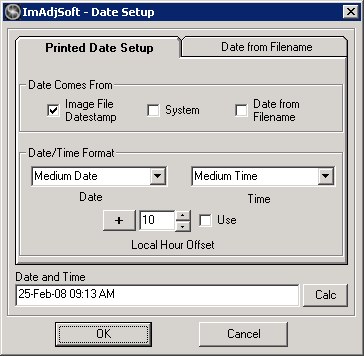
The Date selection dialog is accessed from the Text Toolbar by pressing the DT button.
Date Comes From
- Image File Datestamp - The file datestamp signifying the time the image file was written.
- System - The system time on the server at the time the image is processed.
- Date From Filename - When the filename contains a datestamp.
Date/Time Format
- These options are provided by the operating system which allows, Short, Medium and Long formats for both date and time.
Local hour Offset
- The number of hours to add or subtract from the datetime prior to writting it to the image.
For example, if your local time is +10 hours from Greenwich Mean Time, subtracting 10 hours from the file datestamp will print the time in UT, that the file was written.
+ / - This button toggles between plus and minus allowing the chosen offset to be either added or subtracted. The displayed sign signifies what will happen.
Use - Check this checkbox to apply the chosen offset in the layout.
Date and Time - Displays a sample of the datetime format settings selected.
Press the Calc button to recalculate the date after changing formatting changing settings to see the new result. This is an informational display only so calculation is not required for correct layout setup.