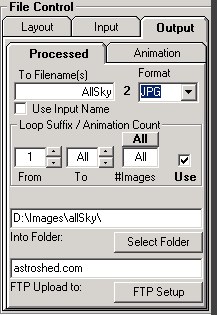
Output Processed Images
To Filename(s)- You can enter a static filename in here. If a Loop suffix (below) is selected, then the entered filename will have the suffix added when the image is saved.
Format- Is the output format of the processed images. JPG is the currently the only output filetype.
Use Input Name- Checking this option will result in the input filename always being used as the output filename, with the chosen Suffix options and appropriate file extension added automatically.
Loop Suffix / Animation Count- Performs two functions, one as filename suffix loop counter and/or an animation frame count. If switched on, enables an optional looping suffix to be attached to output filenames. This is particularly useful for animations, where the output files are to be overwritten by newer images, when the suffix is used in conjunction with a static filename for example.
- From The start of the looping suffix.
- To The end of the looping suffix. Suffix will loop back to the starting value (From) after the End is reached, unless To - 'All' is selected in which case the increment will continue without looping.
- All This button will set the suffix to increment indefinately, or if the suffix is not being used and an animation is being generated, all processed images will continue to be added to the animation.
- # Images The number of images in the loop, calculated by the start and end points. If the End point is set to "All", the number of images is undefined and will continue to be added-to.
Use This checkbox refers only to the addition of a filename suffix. The number of images entered here will apply to animations whether Use is checked or not.
Note - If a looping suffix is used in conjunction with a static filename entered above (i.e. you are not using the input filename), and "All" is not selecetd then output images will be overwritten, effectively retaining only this number of output images.
Into Folder:
Selects the folder to where processed images and optional animation will be saved. To create and/or select the directory for output, click the "Select Folder" button.
FTP Upload to:
The FTP Upload button opens the FTP setup dialog where server, connection and path settings are entered for optional FTP upload of processed images.