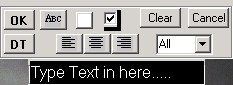
Text settings - The Text Toolbar
OK - apply the current text to the image. The line of text will be added to the list of text entries in the Edit/Delete box of the Text tab.
ABC - This is the font selection dialog where fonts styles and sizes can be chosen, as well as font styles like Bold and Italic.
Colour Box - The small white box is for font colour selection. Clicking the box will load the font colour selection dialog. To change the colour of existing text, highlight it with the mouse before clicking the colour button
Shadow - The Shadow checkbox will apply a drop-shadow to all text after it is applied to the image. This is effective in making text stand out over light backgrounds.
DT - This is the date selector button. Clicking this button will load the date selection dialog which allows formatting and selection of the desired date type and time offset. Dates may be printed from the file datestamp, system time or a date extracted from the filename. Dates are a special text type and are shown in the text list prefixed with %d, which represents a date. When images are processed, the actual date as chosen, is substituted automatically. Any mixture of dates is allowable on one image, such as local and with an offset to Universal Time or Greenwich Mean Time.
Note: Dates cannot be mixed with other text in a single text entry, therefore a date field can contain nothing more than a single date type. All selected fonts and formatting will apply to dates as with any other text.
Three Justification buttons The three justification buttons represent Left, Center and Right justification. These can be used to align text with image borders. For example, if you want a line of text to be right-aligned on the image, select right justification for your text then move the textbox to the position where you want the text to be.
Cancel - Clicking the Cancel button will cancel any text entry or edit in progress.